How to make a print-ready PDF
The export settings for InDesign and Affinity Publisher, notes for Illustrator and Scribus, and how to size a cover with spine.
- Adobe PDF Preset
- [PDF/X-4:2008]
- Pages / Spreads
- Pages
- All Printer's Marks
- Off
- Use Document Bleed Settings
- On
- Color Images
- Bicubic, 300 ppi
- Compatibility
- Acrobat 7 (PDF 1.6)
- Your PDF
- Checked before you pay
 Printed and delivered
- PDF/X-4 or PDF/X-1a
- 3 mm bleed on most products
- Checked the moment you upload
What you can print from your PDF
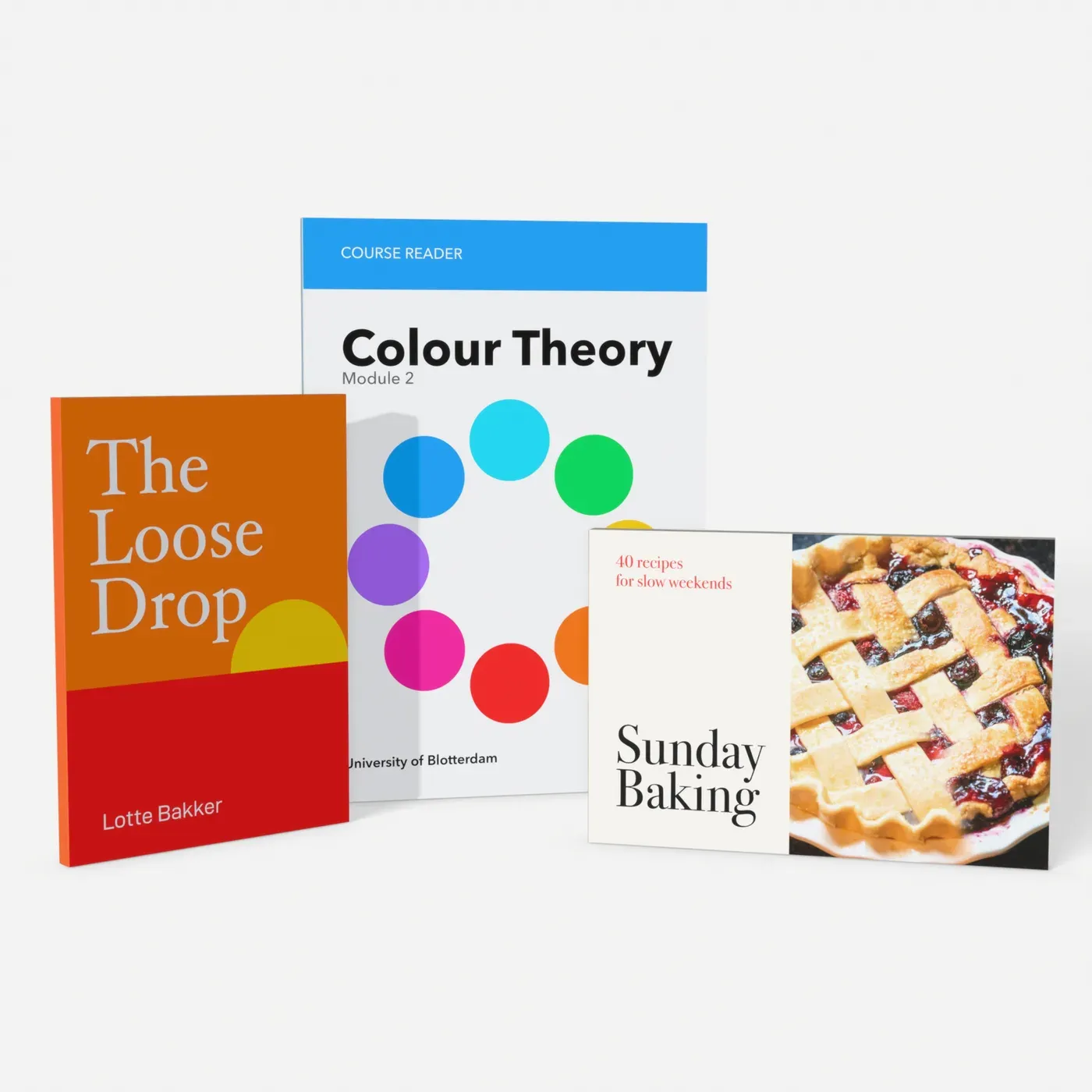
Single-page interior plus a cover spread with spine. 24 to 200 pages.
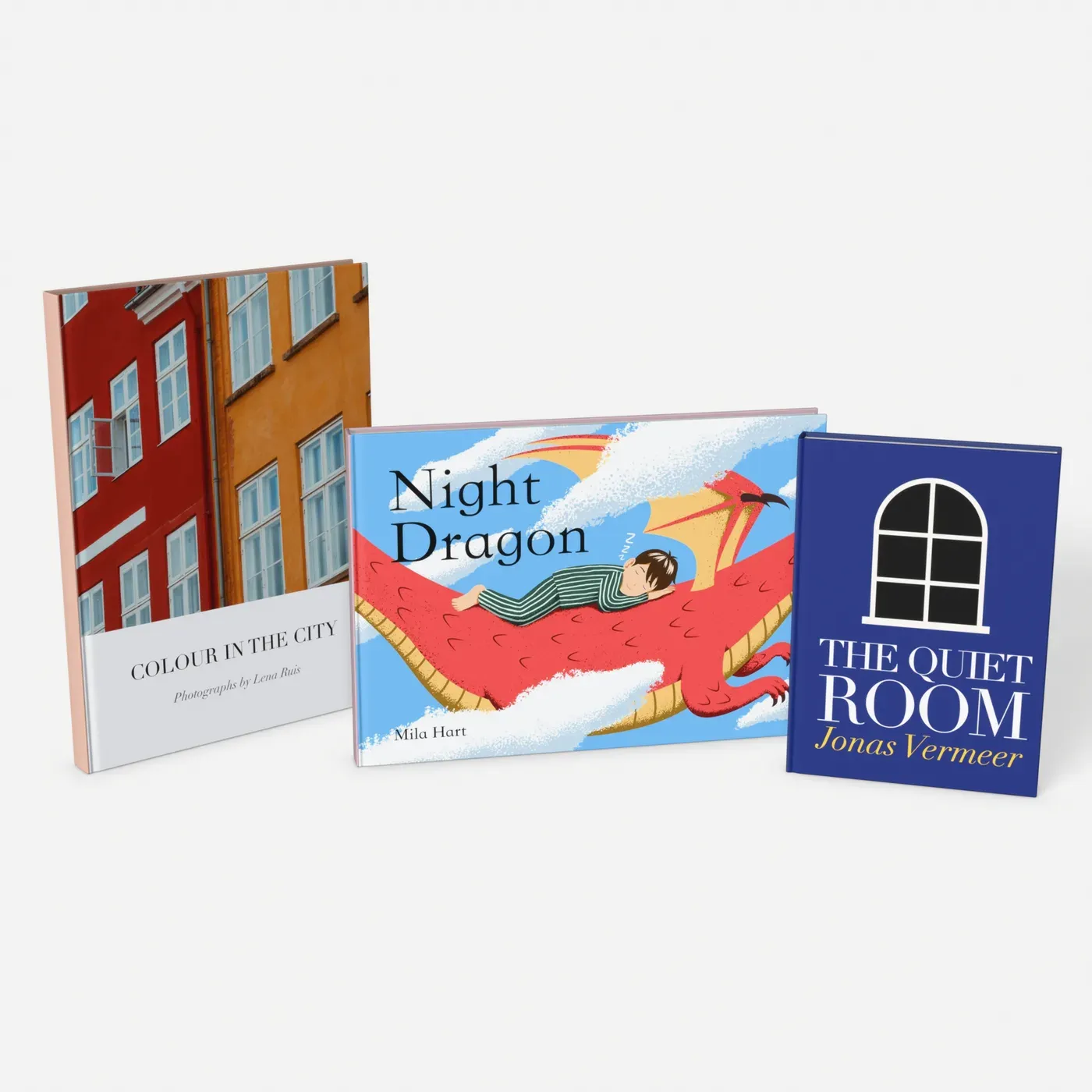
The same interior; the cover wraps the board with 19 mm bleed.
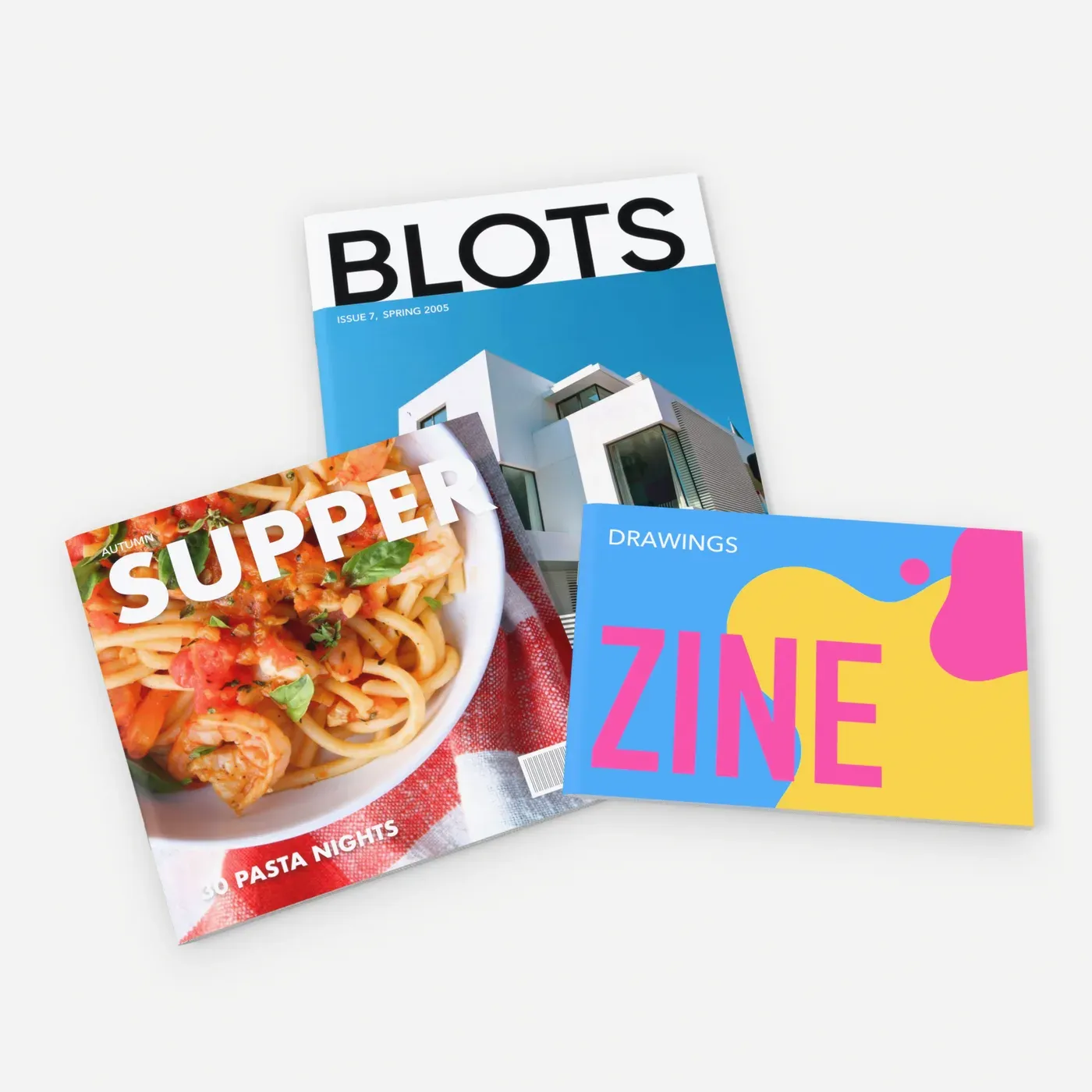
Stapled, 12 to 40 pages in steps of 4, cover in the same PDF.
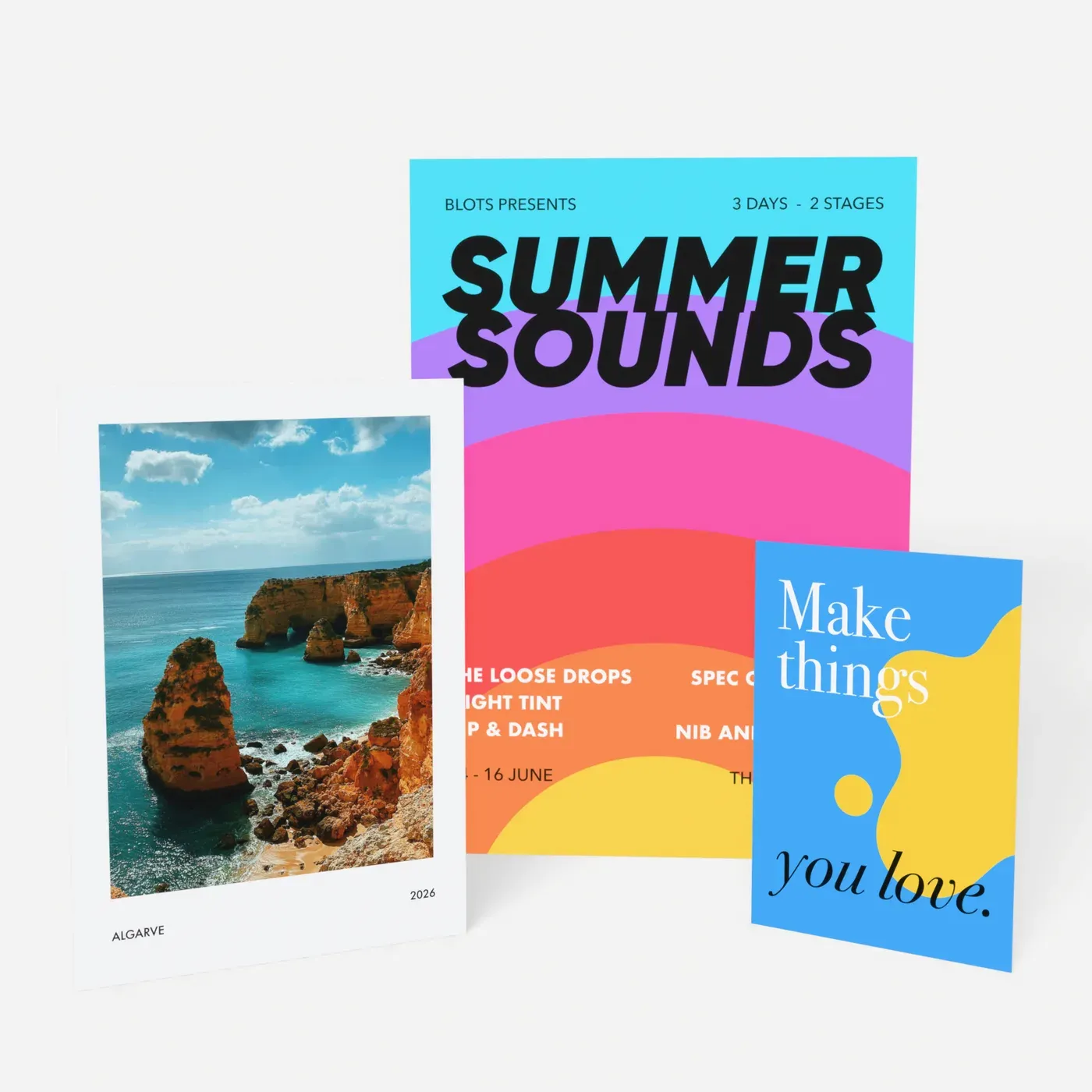
One page, 20 × 30 cm to A0. Vector text stays crisp.

Everything we print: books, wall art, mugs, calendars and more.
The settings at a glance
| Setting | Interior | Cover (books) | Poster |
|---|---|---|---|
| Document size | Trim size, e.g. 148 × 210 mm | Back + spine + front | Trim size |
| Bleed | 3 mm | 3 mm (paperback), 19 mm (hardcover, photo book, layflat) | 3 mm up to A3; none for 30 × 40, 40 × 30, 40 × 50, A2, A1, A0 |
| Pages | Single pages | One spread | One page |
| PDF standard | PDF/X-4 or PDF/X-1a | PDF/X-4 or PDF/X-1a | PDF/X-4 or PDF/X-1a |
| Images | 300 ppi | 300 ppi | 150-300 ppi at full size |
| Printer's marks | None | None | None |
Each product page gives the exact file size with bleed, per size and page count.
Export from InDesign
Menu names from the English version of InDesign.
- 1.
Document at trim size
File > New > Document: width and height of the finished product, without bleed. Facing Pages on for a book or magazine. Under Bleed and Slug, 3 mm on every side. For an existing document: File > Document Setup.
- 2.
PDF/X-4 preset
File > Export, Adobe PDF (Print), preset [PDF/X-4:2008]. [PDF/X-1a:2001] also works; it flattens transparency and converts to CMYK.
- 3.
Pages, not spreads
Under General, choose Pages.
- 4.
Bleed on, marks off
Under Marks and Bleeds, untick All Printer's Marks and tick Use Document Bleed Settings.
- 5.
Images at 300 ppi
Under Compression: Bicubic Downsampling to 300 ppi for images above 450 ppi, JPEG quality Maximum. The limit per file is 200 MB.
Export from Affinity Publisher
- 1.
Page size and bleed
In the new document dialog or File > Document Setup: trim size, 3 mm bleed on every side, facing pages on for a book.
- 2.
Print preset
File > Export > PDF, preset PDF/X-4, or PDF (for print) if you don't need PDF/X.
- 3.
Include bleed
Tick Include bleed. Under More, leave crop marks off and export single pages, not spreads.
Illustrator and Scribus
Illustrator
For posters and cover spreads. File > Document Setup: artboard at trim size, 3 mm bleed. File > Save As, Adobe PDF, preset [PDF/X-4:2008], and under Marks and Bleeds tick Use Document Bleed Settings.
Scribus (free)
File > Document Setup: 3 mm bleeds. File > Export > Save as PDF, Pre-Press tab: tick Use Document Bleeds, marks off. PDF/X-4 if offered, otherwise PDF 1.4 with all fonts embedded.
Canva and Word
See printing a Canva design and printing a Word document as a book.
The cover spread and spine width
A paperback, hardcover, photo book or layflat cover is one wide page: back left, spine in the middle, front right. The spine grows by about 0.14 mm per sheet (two pages) on standard paper and about 0.44 mm in a layflat, so finish the interior first. The product page gives the exact cover size and spine for your page count, and our check compares your cover with it.
Paperback example, A5 with 100 pages and a 12 mm spine: 2 × 148 + 12 + 2 × 3 = 314 mm wide, 210 + 2 × 3 = 216 mm high. The spine runs from 151 to 163 mm from the left.
Hardcover example, A5 with 100 pages: the boards are about 155 × 217 mm, the spine 11 mm and the bleed 19 mm, which folds round the board. So 2 × 155 + 11 + 2 × 19 = 359 mm wide, 217 + 2 × 19 = 255 mm high. Keep nothing important in that 19 mm.
Keep spine text 2 mm from the folds, and leave a spine under about 5 mm plain. A spiral book uses the first and last page of the PDF as its covers. In a magazine, the cover is part of the PDF: the first two pages and the last two are its outside and inside. See book binding types.
Colour, black and fonts
Rich black in CMYK
Backgrounds and big headlines in C60 M40 Y40 K100; body text in 100% K only. In RGB files, use #000000.
RGB is accepted
We convert RGB ourselves. Working in CMYK, keep total ink under about 300%.
Fonts
PDF/X embeds them. If a licence forbids embedding, convert that text to outlines. Check File > Properties > Fonts in Acrobat.
Spot colours and overprint
Convert Pantone colours: Window > Color > Swatches, Ink Manager > All Spots to Process. White set to overprint disappears in print; check with View > Overprint Preview.
Questions
PDF/X-4 or PDF/X-1a?
Should the document size include the bleed?
Do I need crop marks?
How do I know the spine width?
My PDF is larger than 200 MB. What now?
How it works
Upload your file
Choose a product, a size and options, and add your PDF or photo. We check it right away and show you a preview, before you pay.
We print it
We print your order in the Netherlands on the paper or material you chose, from a single piece. No minimum order, no account needed.
We bring it to your door
We ship it to every country of the EU, with tracking. The checkout shows the delivery date for your address.
More ideas and guides
All ideas and guidesPrint your Canva design as a poster, book or calendar
Print a Canva design as a poster, book, magazine or calendar: the page size to type, print bleed, the PDF Print settings and a book cover with spine.
Print your Word document as a book
Print a Word document as a book: A5 page size with bleed, mirror margins, page numbers, sharp images, a PDF with embedded fonts, and Google Docs settings.
Book binding types explained
Book binding types compared: perfect binding, case binding, layflat, wire-O and saddle stitch. Page counts, which ones lie flat, cover files and prices.
Paperback or hardcover: which one fits your book?
Paperback vs hardcover: page counts, paper choice, cover files and example prices at the same size. Both printed from your PDF, from a single copy.
A5 book printing
A5 book printing from one copy: paperback, hardcover, spiral or layflat. A5 next to trade sizes, font sizes, page counts and setting up your PDF.
Print your own recipe book
Recipe book printing from one copy: a spiral book that lies flat in the kitchen, a paperback or a hardcover. With page counts, layout tips and a template.
Upload your print-ready PDF
Choose a product and size, upload your file and see the preview and price right away.