Print your Canva design as a poster, book or calendar
Set three things right in Canva: the page size, the print bleed and the download settings. Then upload the PDF and check the preview.
- File type
- PDF Print
- Crop marks and bleed
- On
- Flatten PDF
- On
- Color profile
- RGB
- Select pages
- All pages
- Your PDF
- Checked before you pay
 Printed and delivered
- Download as PDF Print
- RGB files are fine
- File check and preview before paying
What you can print from Canva
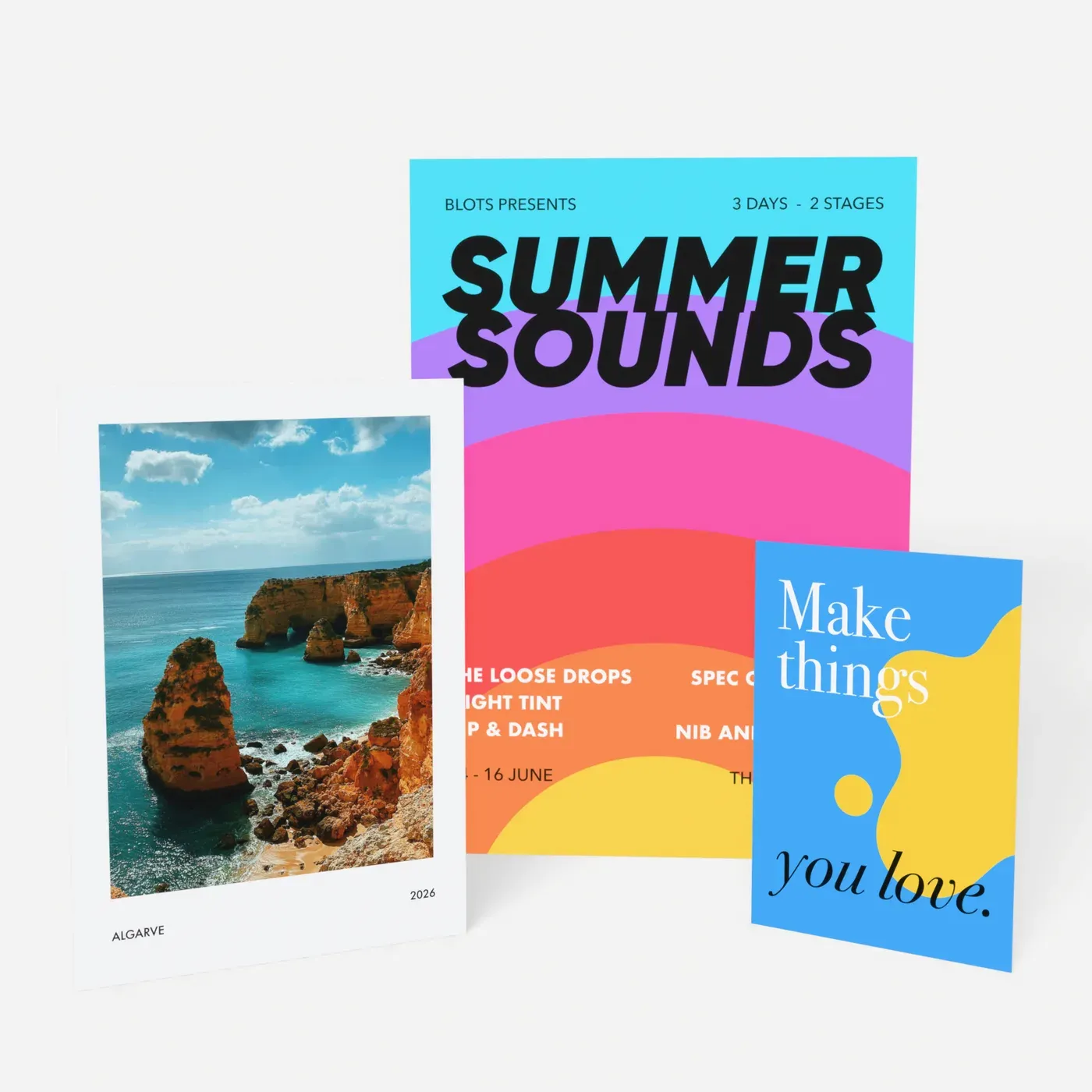
One page, 20 × 30 cm to A0. PDF, JPEG or PNG.
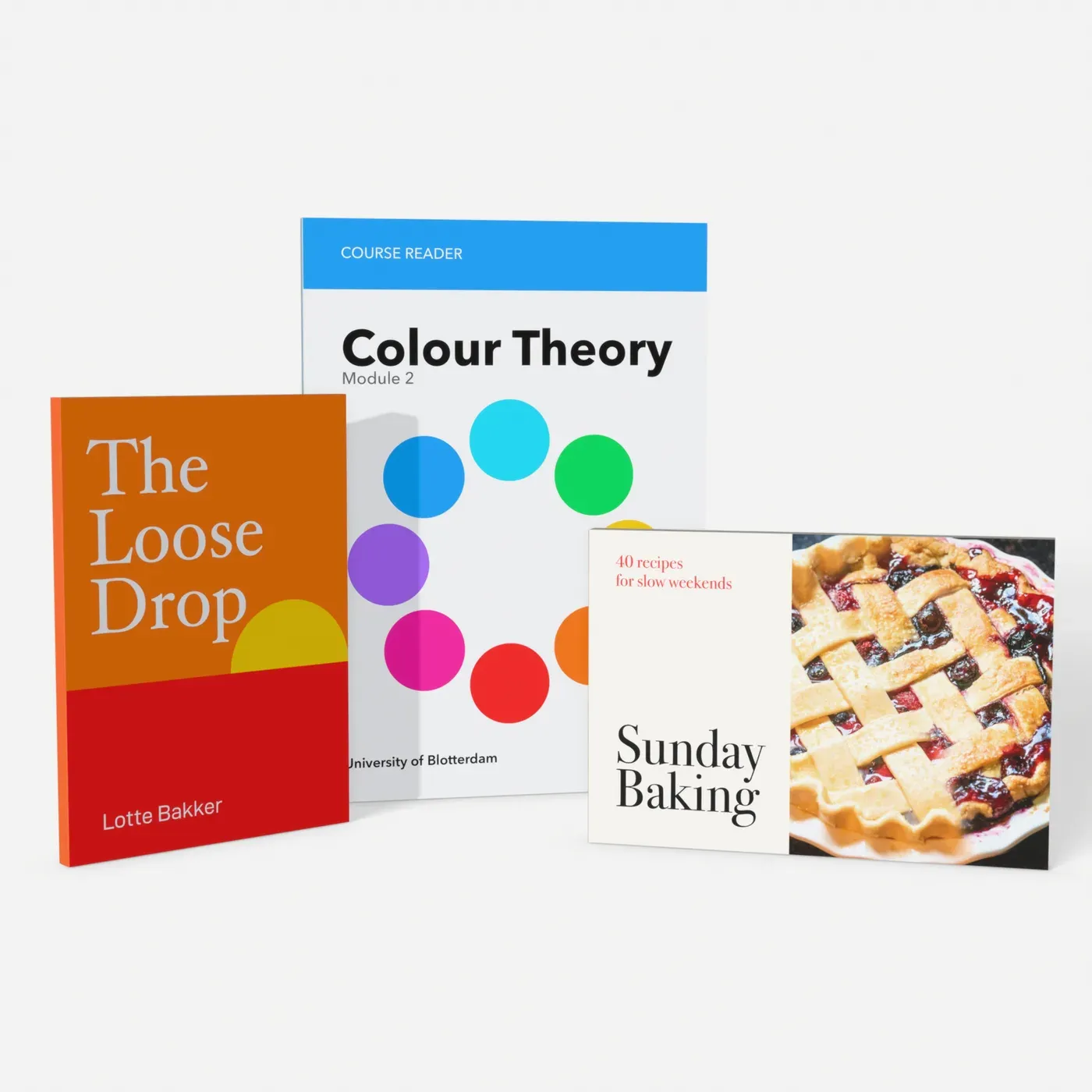
24 to 200 pages: a pages PDF plus a separate cover.
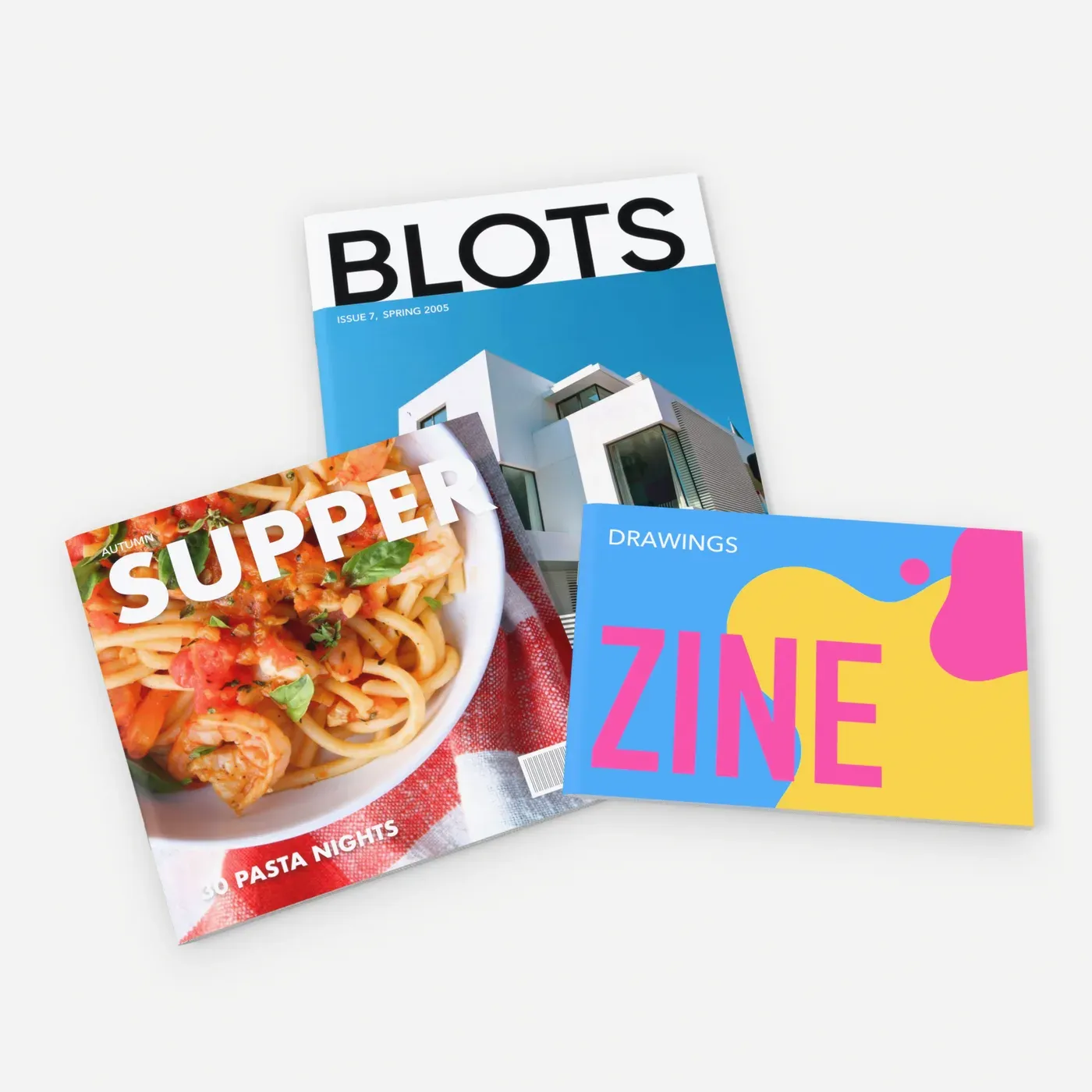
A stapled zine or magazine, 12 to 40 pages in steps of 4.

A4 or A3 wall calendar: front page plus 12 months.
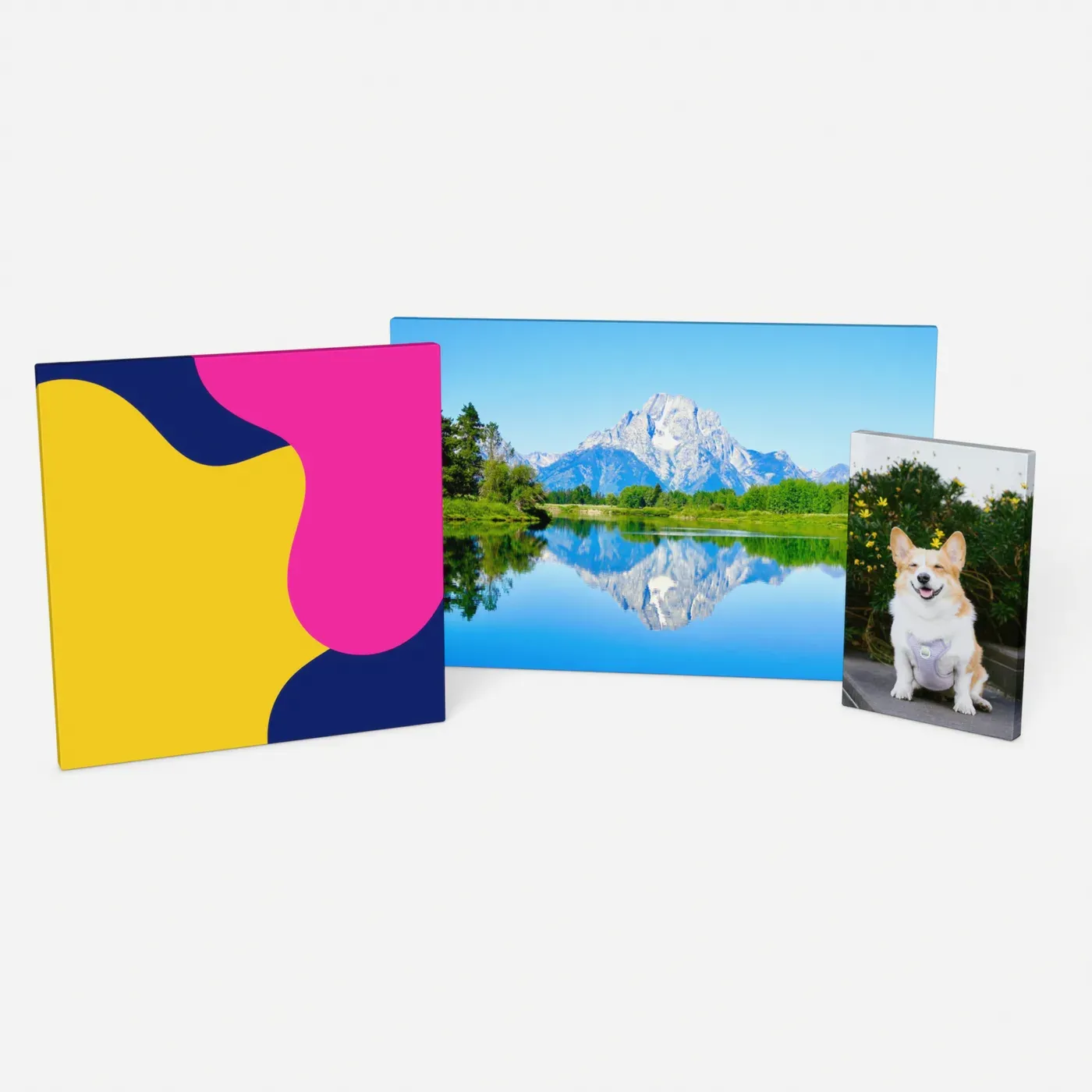

Everything we print: books, wall art, mugs, calendars and more.
Canva settings for print
Menu names from the English version of Canva, in the browser and the desktop app.
- 1.
Start at the exact size
Create a design > Custom size, choose mm and type the product size, for example 297 × 420 mm for an A3 poster. Canva's "Poster" or "Book" templates are usually a different size. Resize is a paid feature; on the free plan, start a new design and copy your elements over.
- 2.
Turn on the print bleed
File > Settings > Show print bleed. Everything outside the dashed line is cut off, so pull backgrounds and edge photos all the way to the outer edge.
- 3.
Keep text away from the edge
Keep text, logos and faces at least 5 mm inside the dashed line, and 15 mm from the spine in a book.
- 4.
Download as PDF Print
Share > Download, file type PDF Print. PDF Standard compresses photos harder.
- 5.
Tick Crop marks and bleed
This is how the bleed gets into the file; we leave the crop marks off. Exception: posters of 30 × 40, 40 × 30, 40 × 50 cm, A2, A1 and A0 print without bleed, so leave it unticked for those.
- 6.
Tick Flatten PDF
Transparency, shadows and effects then print as you see them.
The size to type in Canva
The size of the product itself, in mm. Canva adds the bleed around it.
| Product | Canva custom size | Pages | Bleed |
|---|---|---|---|
| Poster A3 | 297 × 420 mm | 1 | Yes |
| Poster 40 × 50 cm | 400 × 500 mm | 1 | No |
| Poster A2 | 420 × 594 mm | 1 | No |
| Poster A1 | 594 × 841 mm | 1 | No |
| Poster A0 | 841 × 1189 mm | 1 | No |
| Paperback A5 | 148 × 210 mm | 24-200 | Yes |
| Paperback 21 × 21 cm | 210 × 210 mm | 24-200 | Yes |
| Magazine A4 | 210 × 297 mm | 12-40, steps of 4 | Yes |
| Calendar A4 landscape | 297 × 210 mm | 13 | Yes |
Posters without bleed: keep text 10 mm from the edge. Bleed elsewhere is 3 mm. More sizes: poster sizes.
Books, magazines and calendars
Make the inside as one design with one Canva page per book page, not spreads. A paperback has 24 to 200 pages; with fewer than 24 we add blank pages at the end. A magazine goes up in steps of 4, from 12 to 40: the format of a zine.
A paperback cover is a separate design (below). A calendar has 13 pages with the top 15 mm free for the wire: see the photo calendar guide.
A book cover with spine in Canva
Back, spine and front in one wide design. Make it after the inside is finished, because the spine grows with the page count.
- 1.
Look up the cover size
The product page gives it for your size and page count. Example: an A5 paperback of 100 pages has a 12 mm spine and a 314 × 216 mm cover (2 × 148 mm, 12 mm spine, 3 mm bleed all round).
- 2.
Design at exactly that size
Custom size in mm. The bleed is already included (19 mm on a hardcover), so leave Canva's print bleed off.
- 3.
Mark the spine with guides
File > Settings > Show rulers and guides. For the A5 example: guides 3 mm from every edge and at 151 and 163 mm from the left. Back cover left, front right.
- 4.
Spine text only if it fits
Rotate the title 90 degrees, 2 mm from both spine guides. Under about 5 mm of spine, leave it plain.
- 5.
Download without crop marks
PDF Print with Crop marks and bleed unticked, or a PNG or JPG. Upload it next to the pages PDF.
Common problems in Canva files
Low-resolution photos
Use the original from your camera or phone, not a screenshot or WhatsApp photo. We warn below 150 dpi.
A border from the template
A thin frame near the edge never cuts evenly. Remove it or move it 1 cm inward.
Letter-size templates
US templates are often 8.5 × 11 inches, not A4. Check the size before you start.
CMYK and black
CMYK download is a paid feature and you don't need it: we accept RGB. Use pure black (#000000) for dark backgrounds.
Questions
Can I print a Canva design without Canva Pro?
Should I choose PDF Standard or PDF Print?
Will the crop marks be printed?
My Canva design is a different size. What happens?
Can I upload a PNG or JPG from Canva?
How it works
Upload your file
Choose a product, a size and options, and add your PDF or photo. We check it right away and show you a preview, before you pay.
We print it
We print your order in the Netherlands on the paper or material you chose, from a single piece. No minimum order, no account needed.
We bring it to your door
We ship it to every country of the EU, with tracking. The checkout shows the delivery date for your address.
More ideas and guides
All ideas and guidesHow to make a print-ready PDF
Make a print-ready PDF: trim size, 3 mm bleed, PDF/X-4, no printer's marks, single pages and a cover spread with the right spine. InDesign, Affinity and more.
Poster sizes
Every poster size from 20 × 30 cm to A0, drawn to scale. How the A sizes work, the pixels each size needs, which size suits your wall and which frame fits.
Make your own photo calendar for 2027
Make your 2027 photo calendar with our free template or your own design: A4 or A3, a cover and 12 months, wire-bound. With the 2027 holidays and month grids.
Zine printing, from one copy
Zine printing, stapled, 12 to 40 pages, from one copy. Upload your pages in reading order, no imposition needed. With page counts and riso tips.
Print your Word document as a book
Print a Word document as a book: A5 page size with bleed, mirror margins, page numbers, sharp images, a PDF with embedded fonts, and Google Docs settings.
Print your own recipe book
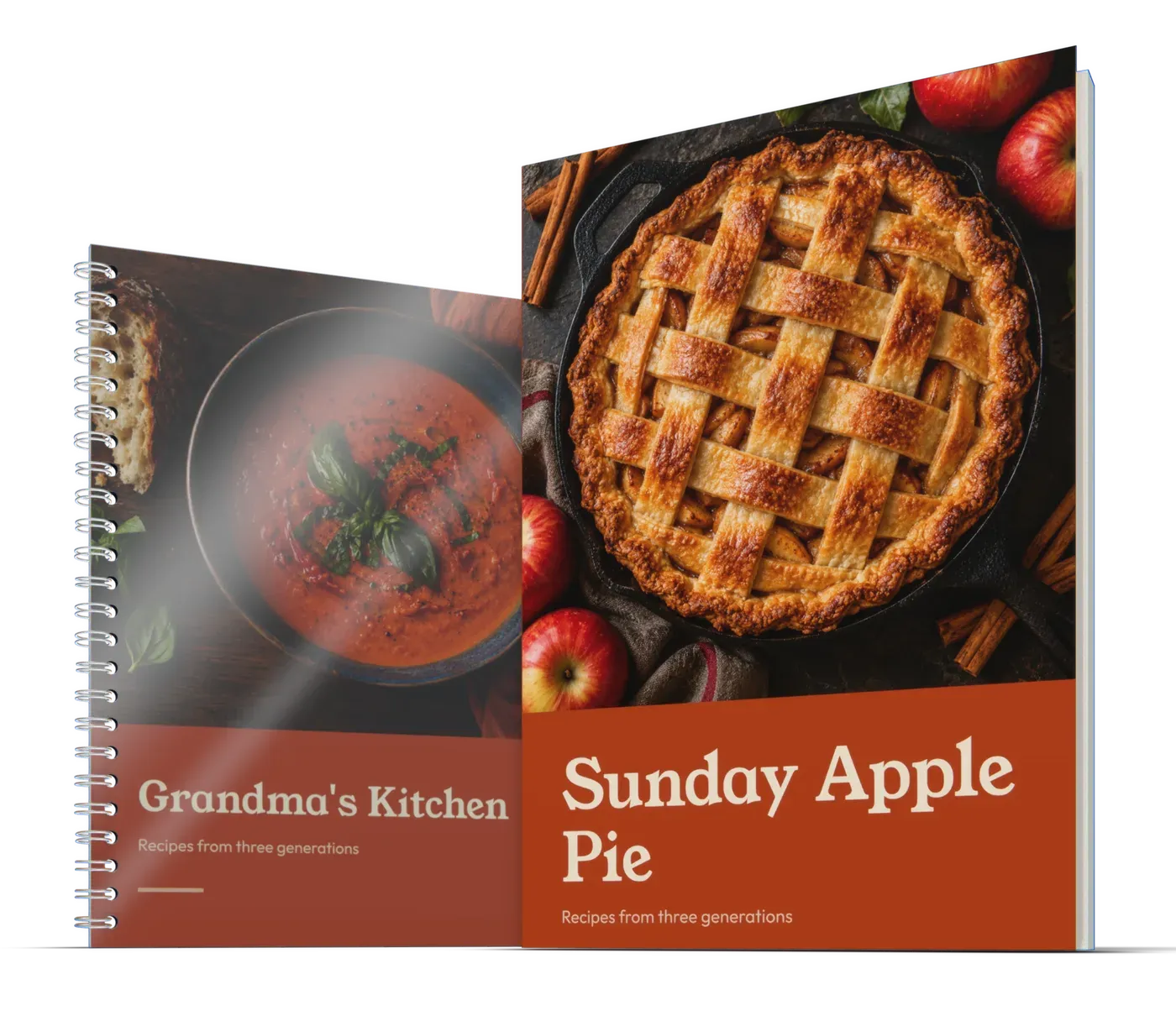
Recipe book printing from one copy: a spiral book that lies flat in the kitchen, a paperback or a hardcover. With page counts, layout tips and a template.
Upload your Canva PDF
Choose a product and size, upload your file and see the preview and price right away.